


FlipArtify - 2D Draw Animation
2.91.16K Reviews
App Specs
- Version
- 1.6.4
- Updated On
- License
- Free
- Downloads
- 1,000,000+
- Developer
- CEM SOFTWARE LTD
- Categories
- Art & Design
- Platform
- Android, iOS
Screenshots
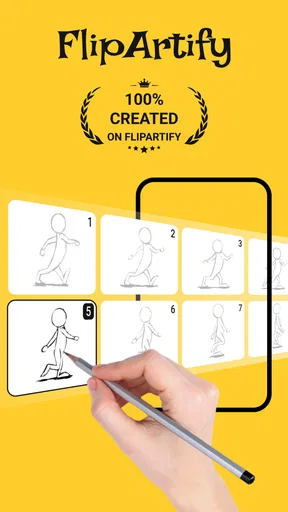
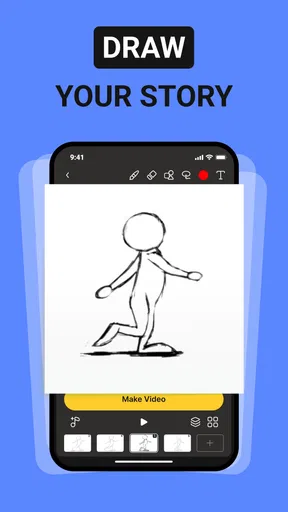
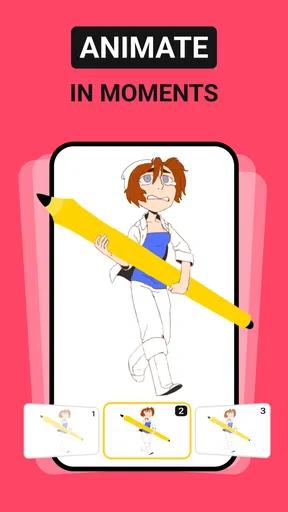
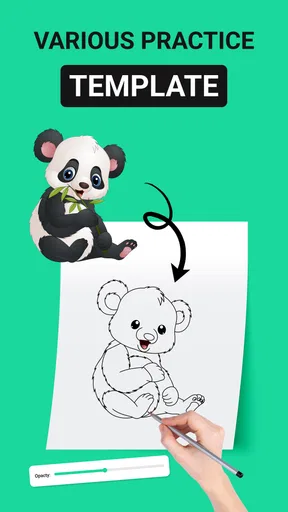
 Analysis by AppCompare
I find a small animation project fits naturally into shared-device life: one person sketches a character, someone else suggests what should happen next, and the phone or tablet becomes a place to try the idea rather than just talk about it. FlipArtify - 2D Draw Animation is a drawing and animation app from CEM SOFTWARE LTD, and its frame-by-frame approach makes that kind of casual collaboration easy to understand. It is aimed at making 2D animation approachable, though I would treat it as a creative workspace to take turns with, not assume it has household or account-sharing controls.
A short project that works around a busy day
Picture a family waiting for dinner: one person draws a simple character, another chooses a color or suggests a movement, and the first person adds the next frame. Onion skinning can help keep that motion visually connected because the previous frame remains available as a guide. The result can be a tiny looping idea to show someone later, without needing to plan a long film or learn a complicated animation workflow first.
That small scale is a strength. A bouncing object, a waving figure, or clouds moving across a scene gives a beginner a clear goal and makes it easier to notice how one drawing changes into the next. I would keep early projects simple and agree on the idea before handing over the device; otherwise, a shared session can turn into several people changing the direction at once.
Taking turns without confusing the project
For a shared device, I would make the handoff deliberate: finish a frame, pause, and tell the next person what the animation is meant to do. That is a practical habit rather than a special app feature, but it helps preserve a coherent sequence when several hands are involved. It also gives younger users room to contribute a color, background detail, or movement idea without requiring them to manage every part of the project.
There is a trade-off to this approach. Frame-by-frame work invites experimentation, yet edits from multiple people can make it harder to remember which version was intentional. Before trying a major change, I would consider whether the current project is something the group wants to keep as-is. For a more organized collaboration, separate projects or a dedicated shared creative service may suit better than passing one open animation around.
Keep expectations clear on a household device
The app is free to download, with in-app purchases listed from $2.99 to $29.99 per item. On a device used by more than one person, I would check the purchase flow and any device-level purchase settings before letting a child explore independently. That is especially useful when the app is being treated as a casual drawing activity: a child may be focused on the artwork, while the adult is responsible for decisions about spending.
I would also make a simple boundary between personal sketches and group projects. If a drawing is meant to be a shared effort, say so before someone starts changing frames; if it is an individual piece, give that person time to work without interruption. These small expectations matter more than trying to turn a drawing app into a family-management tool.
Worth Reading Before You Choose

EA SPORTS FC Mobile 26 Is a Bigger Football Game, but It Takes Time

Flipboard Shows What News Apps Must Do Beyond the Feed

Switching to Android Auto Means Rethinking Your Driving Routine

Google Calendar Makes a Crowded Week Easier to Manage

Ludo King Makes the Most of the Minutes Between Plans

Baby Panda World Brings Quick Play to Modern Phones, but Its Game Library Feels Busy
Age suitability and adult judgment
The content rating is Everyone, so the app is broadly suitable for general audiences. That rating does not decide whether a particular child is ready to manage a drawing workflow or make choices around purchases, though. I would introduce it with a small supervised project, then see whether the child can move through the tools comfortably and understand which work is theirs to change.
FlipArtify has an average rating of 3.1 from around 11,000 ratings, alongside roughly 1,100 written reviews. I read that as a reason to approach it with measured expectations rather than assume every user will find it equally smooth or satisfying. Its reach is substantial, with over a million installs, but popularity does not remove the need to see whether the workflow suits your household’s devices and creative habits.
The app is listed as version 1.6.0 and supports Android 7.0 or later. It was released on June 13, 2024. If you are choosing it for a particular phone or tablet, checking that the operating system meets the minimum is a sensible first step. Its publisher, CEM SOFTWARE LTD, places it in the art and design space, which is a better guide to its purpose than expecting it to work like a full video editor or a general-purpose drawing studio.
Where it fits among drawing and animation options
Compared with a plain sketching app, the key difference is the frame sequence: you are not only making a picture but also working out how it changes. Compared with a more involved animation program, the appeal here is a more approachable route into that idea. I would choose it for quick hand-drawn motion and practice, while someone who needs precise production controls, a complex compositing workflow, or a polished long-form project should compare it with a more specialized tool.
A useful way to decide is to identify the output before starting. If you want to test a movement, learn how frames relate, or make a playful short animation, this format makes sense. If your main aim is to retouch photos, assemble clips, or produce a detailed illustration without motion, a dedicated editor or drawing app is likely a better match. Keeping the goal narrow also helps avoid frustration when a beginner expects one app to cover every creative task.
Small workflow choices that save time
I would plan a motion in broad beats before drawing every frame: mark the beginning, the most noticeable change, and the ending. That gives the sequence a direction without demanding a storyboard or elaborate preparation. Onion skinning is particularly useful when a moving shape needs to travel gradually; checking each new drawing against the previous one can prevent abrupt jumps that are easy to miss while working frame by frame.
For a shared project, keep the background and moving subject mentally separate, even when the idea is simple. A steady scene with only one changing element is easier to animate and easier for a second person to continue. Likewise, replay the sequence before adding extra detail. If the movement already reads clearly, more decoration may cost time without making the animation easier to understand.
When a project is intended for sharing, decide early whether a GIF or video file is the more useful result, since the app supports saving in both forms. A short, readable motion is generally easier to pass around than a complicated scene that only makes sense after explanation. I would also preview the work before sending it, because a drawing that looks good as a still image can feel too fast or uneven once the frames play together.
Who will enjoy it, and who may prefer another tool
I would recommend it to beginners who want a direct introduction to 2D frame-by-frame animation, casual artists who like making playful motion, and households looking for a low-pressure creative activity. It can also suit someone who already draws and wants to experiment with movement without turning every idea into a major project. The most satisfying results are likely to come from users willing to make several simple drawings and revise them as they watch the sequence.
I would steer away from it if you need a shared account structure, dependable team handoffs, or detailed production features as a central requirement. I would also skip it as the main choice for someone whose goal is static illustration, video editing, or professional animation with a highly controlled pipeline. In those cases, a tool designed specifically for that job will probably be less frustrating, even if it takes longer to learn.
One practical question is whether a first-time animator can get started without much preparation. The basic idea is approachable: draw a first image, make another with a small change, and use the previous frame as a guide. Another is whether it can produce something easy to share; saving as a GIF or video gives you familiar formats for showing a finished experiment. For a household, the remaining question is less about a hidden family feature and more about whether everyone can agree on turn-taking and purchase boundaries.
FlipArtify is free to try, but the in-app purchases mean I would not describe every part of using it as cost-free. For a child or a shared device, an adult should make the spending decision rather than leave it to an accidental tap. That is a straightforward precaution, and it keeps the focus on drawing and experimenting instead of dealing with an unexpected purchase.
A Creative Playground
Okay, so here's the deal: FlipArtify - 2D Draw Animation is all about unleashing your creativity. When you open the app, you’re greeted with a clean and intuitive interface. It's seriously user-friendly, so you won’t be spending hours trying to figure out where the tools are. Trust me, you’ll be animating in no time.
Tools and Features Galore
You’ve got a whole arsenal of tools at your disposal. There are brushes of every size and shape, and the color palette is downright impressive. What’s cool is how easy it is to switch between them. You can even layer your drawings, which is a game-changer for making complex animations. Imagine layering a sunset scene with moving clouds—yep, you can do that!
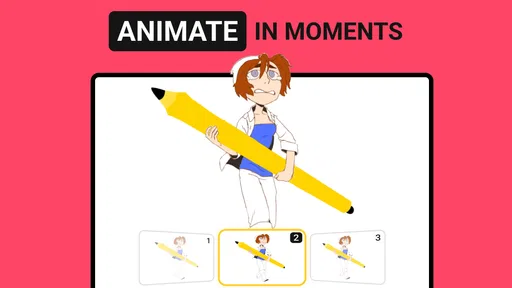
Another neat feature is the onion skinning tool. This lets you see the previous frame while drawing the next one, ensuring smooth transitions in your animations. It’s like having a ghost guide showing you the way, and it makes the process a whole lot easier.
Animation Made Simple
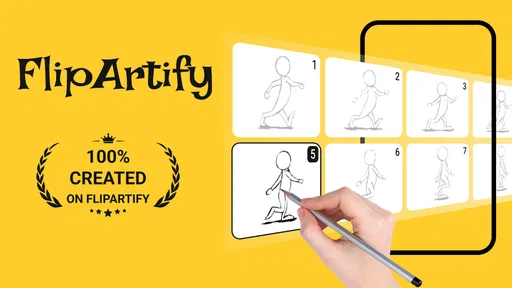
Animating with this app is like having a mini animation studio in your pocket. You start by drawing the first frame, then move on to the next, using the onion skinning tool to guide you. Before you know it, you’ve got a little movie playing right on your screen. The timeline is pretty intuitive, so you can easily control the speed of your animation and see how everything flows together.
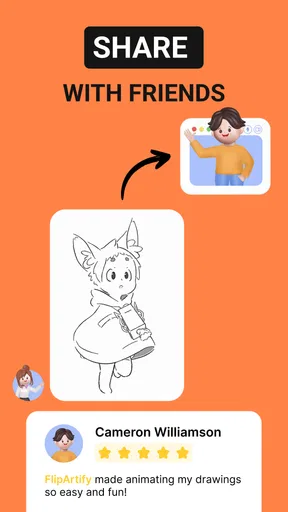
Exporting your work is a breeze, too. You can save your animations as GIFs or video files, making it perfect for sharing on social media or with friends. I’ve found myself sending quirky little animations to my buddies just for laughs. It's a great way to showcase your creativity.
The Joy of Creation
One of the things I love most about FlipArtify is how it encourages experimentation. There’s no right or wrong way to create, and the app gives you the freedom to try new things. Whether you’re doodling a bouncing ball or crafting a detailed character animation, the process feels rewarding. It’s kind of like doodling in a notebook, but with a modern twist.
Performance and Usability
Let’s talk about performance for a second. The app runs smoothly on both Android and iOS, and I haven’t experienced any major glitches. The developers seem to have put a lot of thought into optimizing the app for different devices. It’s refreshing to use an app that doesn’t lag or crash constantly.
The usability factor is high, too. With simple tap and swipe gestures, you can navigate through the app without any hassle. Even if you’re new to animation, the learning curve isn’t steep. Everything is laid out clearly, making it accessible for users of all skill levels.
Final Thoughts
All in all, FlipArtify - 2D Draw Animation is a delightful app that sparks creativity. It’s perfect for anyone looking to dive into the world of animation, whether you're an amateur or a seasoned artist. With its straightforward interface, powerful tools, and seamless performance, it’s hard not to fall in love with it. Plus, it’s just plain fun to use!
If you’re ready to start creating your own animations, go ahead and give FlipArtify a try. Who knows? You might just discover a hidden talent or, at the very least, enjoy the process of bringing your ideas to life. Happy animating!
Pros
- Intuitive interface for easy navigation.
- Wide range of drawing tools available.
- Seamless frame-by-frame animation.
- Supports multiple file export formats.
- Regular updates with new features.
Cons
- Limited cloud storage options.
- Occasional app crashes reported.
- Advanced features require a subscription.
- Lacks real-time collaboration tools.
- Some tools have a steep learning curve.
FAQs for FlipArtify - 2D Draw Animation
What is FlipArtify - 2D Draw Animation?
FlipArtify - 2D Draw Animation is an intuitive app designed for artists and animators of all skill levels. It allows users to create stunning 2D animations using a variety of tools and features. Whether you're sketching your first flipbook or crafting a complex scene, FlipArtify provides a user-friendly interface to bring your creations to life.
Is FlipArtify suitable for beginners?
Yes, FlipArtify is ideal for beginners. The app offers an intuitive interface with easy-to-use tools that help newcomers get started with animation. It includes tutorials and guides to help users learn the basics of 2D animation, making it accessible for those with no prior experience.
What features does FlipArtify offer for advanced users?
Advanced users will appreciate FlipArtify’s comprehensive set of features, including multi-layer support, frame-by-frame editing, and a wide range of brushes and tools. The app also supports exporting animations in various formats for professional use, allowing for seamless integration into larger projects.
Is FlipArtify available for both Android and iOS?
Yes, FlipArtify is available for both Android and iOS platforms. Users can download the app from the Google Play Store for Android devices and the Apple App Store for iOS devices, ensuring a broad reach and compatibility across different devices.
Does FlipArtify require an internet connection to work?
No, FlipArtify does not require an internet connection to create animations. Once downloaded, all the features can be accessed offline. However, an internet connection may be needed for downloading updates, accessing cloud storage options, or sharing your animations online.


